
Occupancy Alerts
Occupancy alert rules evaluate the current person occupancy of a location and generate alerts if the configured threshold has been reached.
NOTE: Occupancy Alerts is currently in beta. All beta requests must be directed through your OpenEye Sales Representative.
Creating an Occupancy Rule
- Under Rules, select Alert Rules from the dropdown menu.

- Click New Alert Rule.

- Select an Alert Type from the pop-up menu.

- Click Next.

- Name the alert and give it a Description as desired.
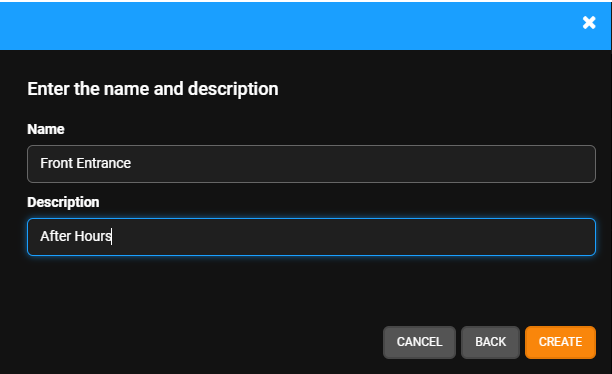
- Click Create.

Defining an Occupancy Alert Rule

- Choose an Event Type from Occupancy Count or Percentage of Maximum Occupancy and then enter an Exceeds value from the dropdown menus.
- Select Custom Hours, Location Hours, or Location Armed State from the Schedule from the dropdown:
- For Custom Hours, check the boxes beneath the Days of the Week on which the rule should be active and the Start and End times.
- Select Armed and Disarmed, Armed, or Disarmed from the Intrusion Area Armed dropdown. See Location Arming for more information.
- For Location Hours, select Only when location is closed or Only when location is open.
- For Location Armed State, select Only when location is armed or Only when location is disarmed.
- For Custom Hours, check the boxes beneath the Days of the Week on which the rule should be active and the Start and End times.
- Active Alert (Optional) - Check the Active Alert box to add the alert to the Active Alert Dashboard and tag it as an Active Alert in email notifications.
- Priority Event Cloud Recording - Check the Priority Event Cloud Recording box to record priority events to the cloud for the associated camera when an alert is triggered by this rule. See Priority Event Cloud Recording for more information.
- Activate Relay on originating device (Optional) - Check the Activate Relay on originating device box to activate a relay when an alert is generated. See Activating a Relay for an Alert Rule for more information.
- Send To 3rd Party Integration (Optional) - Check the Send To boxes to send the alert to the associated 3rd party integration.
- Click Save.
Add Users to an Alert Rule
NOTE: Adding Users to a rule automatically grants them permission to view alerts for cameras and locations they have access to based on their User Group permissions.
- Click Users/Notifications on the left-hand menu.

- Click Add User or Add Group.

- Click + next to each User or Group to send emails and push notifications when the alert is triggered.

- Click Add when finished.

NOTE: To receive email, push or client alert notifications, the Email Alert, Push Alert or Client Alert box must be checked. Simply adding a user only gives them access to see this alert’s history. See Alert Notifications for details.
Deleting an Alert Rule or Updating, Disabling, Clearing All Active Alerts
- Click General Info on the navigation sidebar.

- Edit the Name and Description as desired.

- Click Disable Rule to turn the Alert Rule off without deleting it.
- Click Delete Rule to permanently remove the Alert Rule and delete all history associated with it.
- Click Clear All Active Alerts to permanently remove only the Active Alerts from the history associated with the Alert Rule.
- Click Save when finished.
NOTE: The Name given to an alert will appear as the subject line of email notifications sent by that alert.