
Recorder Settings in OWS
Access the Recorder List under Management tab > Locations > Locations. Click on a location in the Locations list to view any recorders connected to that location, and then click on a recorder.
Recording Devices in Locations
View the devices list for a location. Check Health Events to receive alerts for camera status changes.
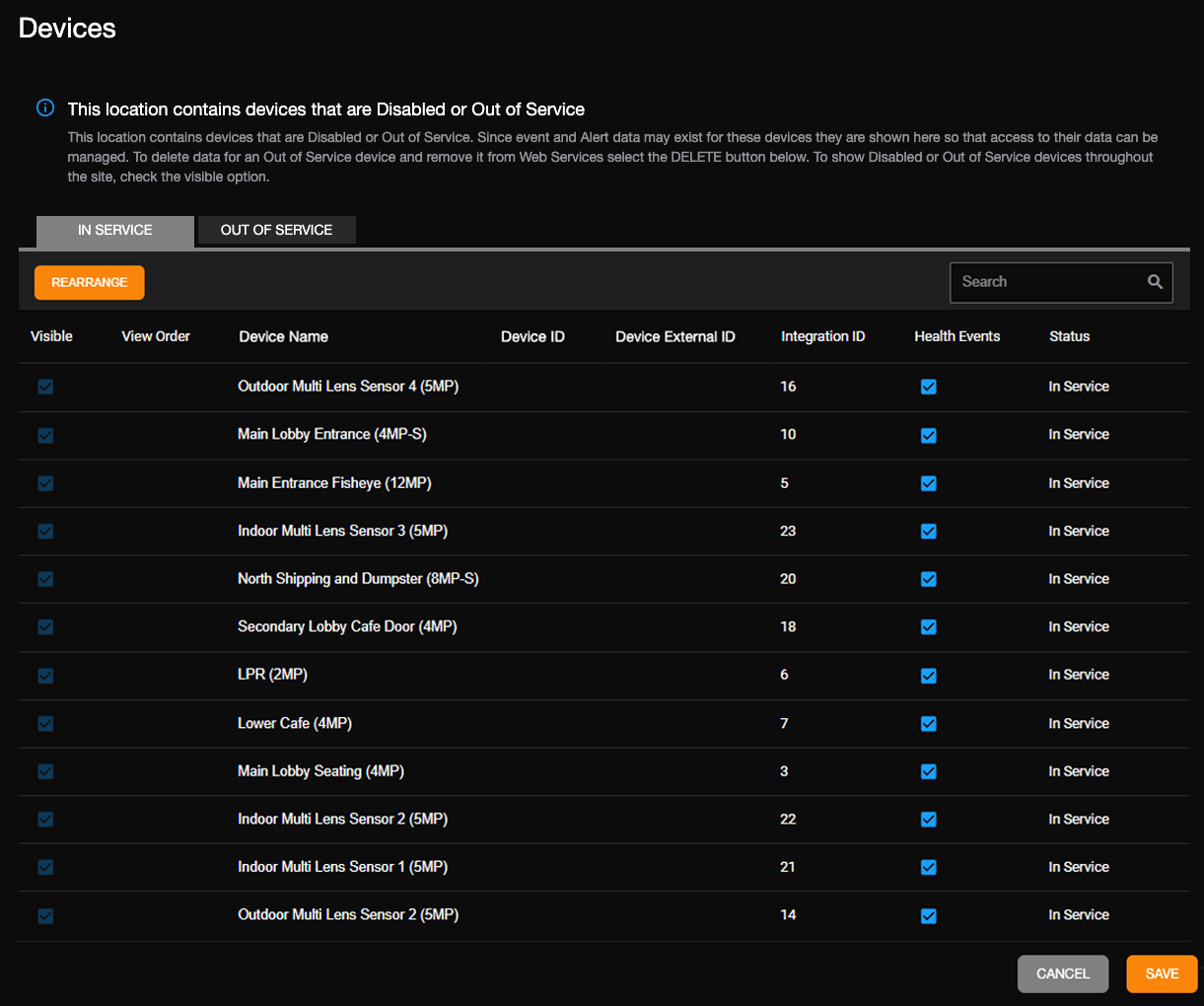
Click on the tab on the Locations page to view Devices.
Devices associated with a Location are listed by Device Name, Device ID, Device External ID and Status. A notification appears when any device is Disabled or Out of Service. Unchecking Health Events removes a device from all health alerts and health reports. The device functions normally for all other alerts and reports.
Rearrange Devices
- To rearrange the device order in the Devices list, click Rearrange.
- Enter values in the New Order column to rearrange the devices in the list.

- Click Save.
NOTE: The order of the devices in this list will determine the order the devices appear under Locations in the OWS Video Player.
Out of Service
Since event and Alert data may exist for Out of Service devices, they are shown here so that access to their data can be managed. Disabled or Out of Service devices will remain visible throughout the site if the Visible box is checked. Checking the Delete box on devices will delete them from the location.
