End User Device Health Monitoring Report
NOTE: The Device Health Monitoring Report is currently in beta. All beta requests must be directed through your OpenEye Sales Representative.
Creating a Device Health Monitoring Report
- Go to Reports.
- Click New Report > Device Health Monitoring Report.

- Click Next.
- Enter Report Name and Report Description.

- Click Confirm.
Configuring a Device Health Monitoring Report

Quick Links
Locations
All locations are automatically included in this Report. Auto-include does not need to be manually enabled.
Users / Notifications

-
Enable Email Reminder Notifications (Optional) - when enabled, the selected users will receive a recurring email notification on the configured day and time.
- Time of day to send email - sets the time the notification email is sent.
- How frequently to send - sets the notification frequency to Monthly, Weekly or Daily.
- Day of every Month - specifies the day of the month the notification is sent.
- Next Send Date - displays the next scheduled notification date and time based on current settings.
-
Add Group and Add User adds user groups and users to the notification recipient list.
-
Send Email (Optional) - controls whether the user or group receives email notifications.
NOTE: Use Search to filter the user/group list by name or email.
NOTE: Click X in the account list to remove an account from the report.
General Info
View Report
Click on View Report  from Quick Links on an Event Report or click View
 on a report from the Reports list.
Viewing the Device Health Monitoring Report
The Device Health Monitoring Report collects health-related events automatically, and it presents status, severity, and supporting details. Reports can be viewed by Accounts, Locations, and Devices.
Locations, and Devices
Locations - displays locations within the selected account, with columns for Location Name, Account Name, Critical Devices, and Urgent Devices. Click View to display the devices added to the location.

Devices - displays individual devices within the selected location, with columns for Device Name, Health Status, Account Name, Location Name, Location ID, Model Name, and Deployable Hardware License.

| Color | Health Status |
|---|---|
| Green | Healthy |
| Red | Critical |
| Yellow | Urgent |
| Gray | Offline |
| Blue | Notice |
NOTE: When a recorder goes offline or is manually paused, its associated cameras are automatically paused in the Health Monitoring Report. Cameras resume when the recorder becomes available again.
Filters
Select to filter device list:
| Filter | Description |
|---|---|
| Locations | Filters the report to a specific location within the selected account. |
| Health Status | Critical, Urgent, Notice, Healthy, and Paused. |
| Device State | Offline and Online. |
| Device Type | Recorder, Cloud Camera, and Camera. |

Click Clear Filters to reset all active filters.
Details
Shows device information, notes, and event details, including timestamps and supporting diagnostics pulled from existing inventory data.
Device Info
Details provides a granular hardware breakdown for each device. Click Manage to view Device General Information.

Event Details
Authorized users can pause health status visibility so known issues do not continue to appear. Click Pause Health Status to temporarily exclude the device's health status from rolling up to the associated recording device, location, and customer account health status.

Notes
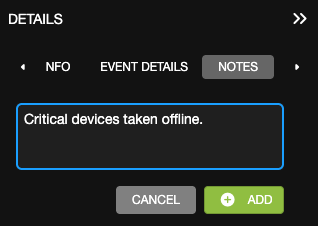
Enter customized information. Notes show author and time of the note.