PAR POS Integration Instructions
Request Location Token from PAR POS
You must grant permission for OpenEye to receive your Location Tokens for each site via an email to PAR POS Support:
- Each location, Store ID Number (if any) and Address must be included in the email.
- Email is to be sent to PAR POS Support: support.brinksoftware@partech.com.
Email Subject Line and Body
PAR POS will require a Subject Line notifying them of the request and all relevant information your company uses to identify Point of Sale Locations:
Subject:
[Customer Name] - Location Token Request for OpenEye
Body:
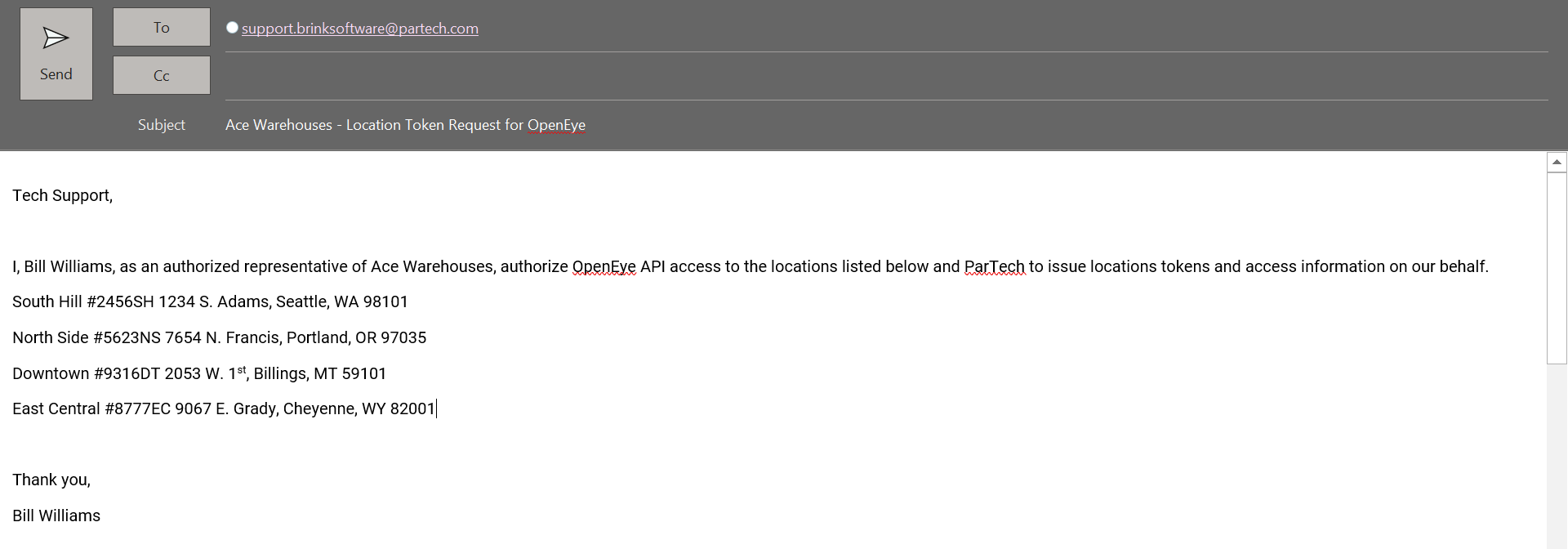
Tech Support,
I, [First Name, Last Name] as an authorized representative of [Company Name], authorize OpenEye API access to the locations listed below and ParTech to issue locaitons tokens and access information on our behalf.
[Location] [StoreID] [Address, City, State, Zip]
[Location] [StoreID] [Address, City, State, Zip]
[Location] [StoreID] [Address, City, State, Zip]
[...]
Thank you,
[Customer Name]
After fulfilling the request, PAR Technology will then send OpenEye an email announcing the authorization and location tokens.
Example:
NOTE: It will take up to 48 business hours after PAR POS approves the integration for the account to be linked to your OWS account.
Add PAR POS Data Collection in OWS
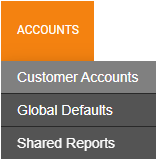
- From the OWS Channel Partner portal, go to Accounts > Customer Accounts.
- Click the Manage
 button on the account you want to edit.

- Select the Subscription Management tab and press Edit.
NOTE: Only End User accounts that have Subscription Management enabled will see the tab.

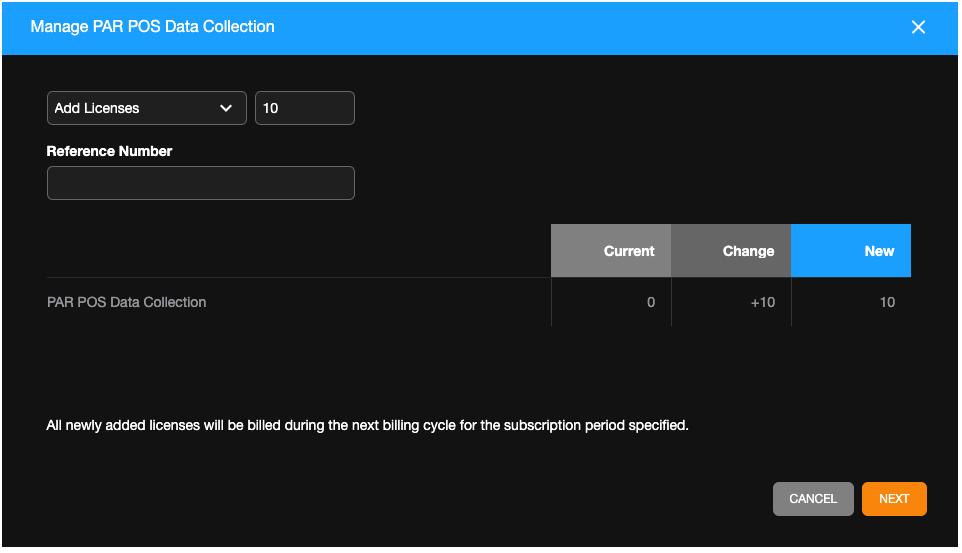
- In the Manage Products section, select Add New, select PAR POS Collection, and click Next.


- Input the number of POS PAR licenses you would like to add and click Next.
- Review the billing changes and Confirm.
NOTE: One POS PAR Collection license per OWS location is needed.

- In the Manage Products section, select Add New, select POS Terminal Licenses, and click Next.
- Input the number of POS Terminal Licenses you would like to add, and click Next.
- Review the billing changes and Confirm.
NOTE: One POS Terminal License per POS terminal is needed.


- On the OWS location being integrated, press the Edit button.

- Under Licenses, select the PAR POS Collection tab, then enable PAR POS Collection and press Next.

- Review the table and Save the changes.

After PAR POS Collection has been added, cameras must be mapped to terminals.
Map Terminals and Cameras
- Click Point of Sale from the Management dropdown menu.

- Click the arrow next to the terminal you wish to select.
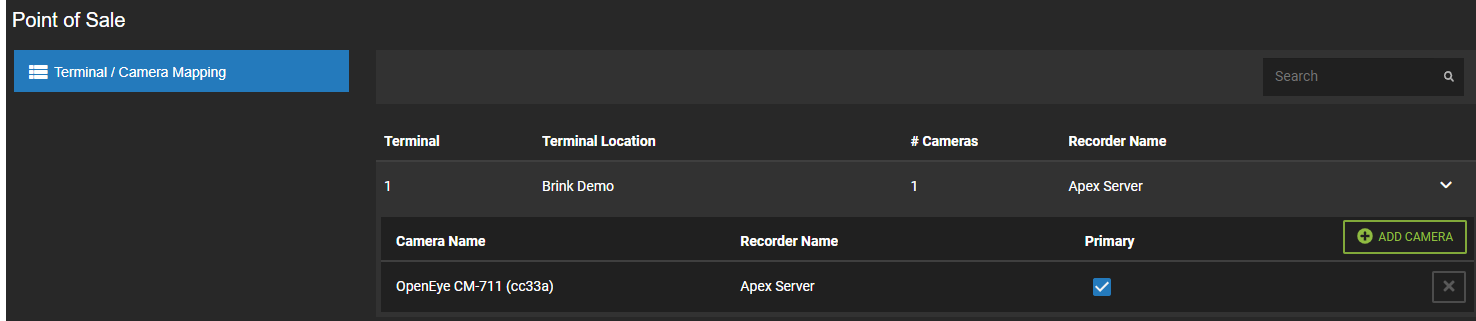
- Click Add Camera.
- Click + in the Not Selected column to add a camera to the Selected column.
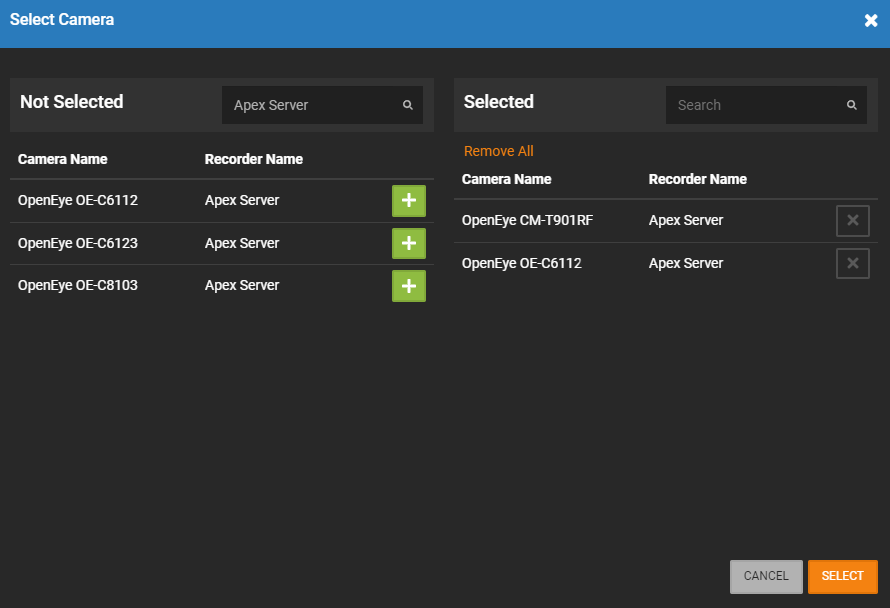
- Click Select.
NOTE: Use Search to find a location in either the Not Selected or Selected lists.
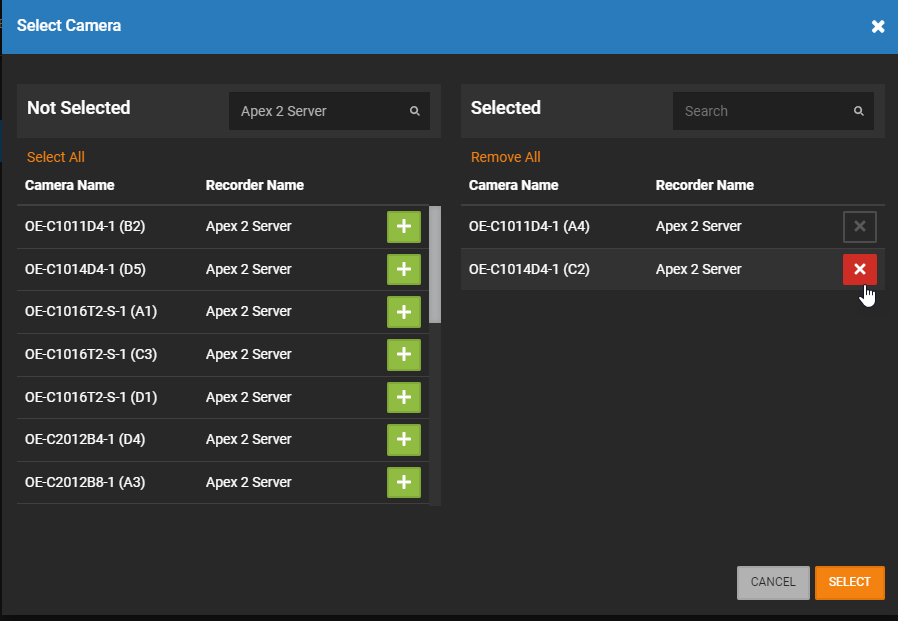
NOTE: Click X in the Selected column to remove a location and put it back in the Not Selected column.
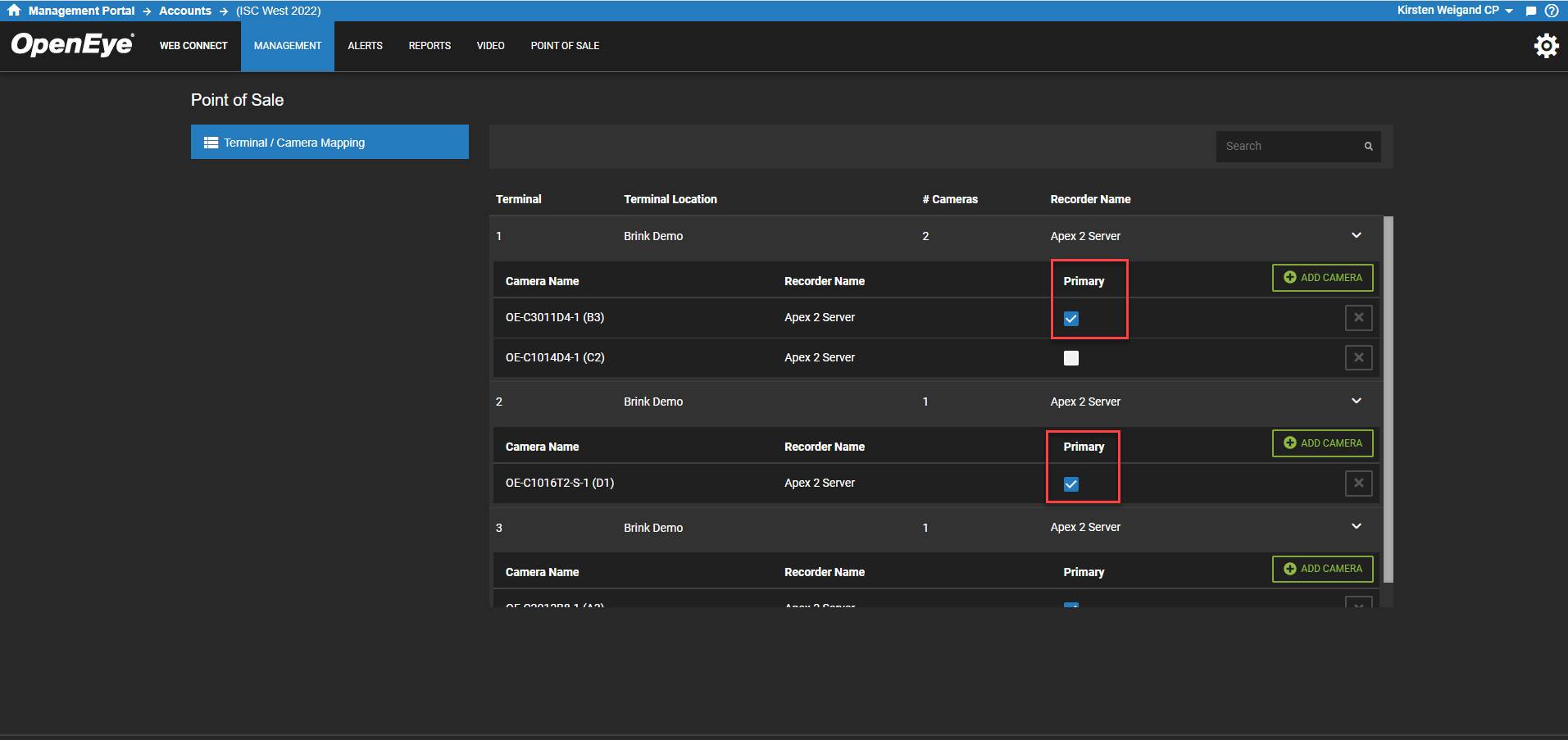
- After selecting cameras, choose a primary camera for the terminal by checking the Primary box.
NOTE: The number of cameras that can be mapped to one terminal is 4 total.
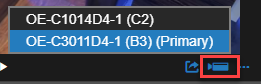
After running a search, the receipt view will populate. Within the video section, there will be a camera picker icon and when clicked, the mapped cameras will be displayed allowing you to choose between them. The primary camera is called out within that pick list. View Receipt and Video for more details.
Best Practice: Deploy fisheye cameras or cameras with corridor mode to capture a complete view of merchandise and point-of-purchase areas.