
OE-MC Series Cloud-Managed Appliance Quick Start Guide
Getting Started
- Connect the network cable intended for remote connections to the Client Network Port.
NOTE: The Camera Network Port is intended for use with a dedicated camera network.
- Connect the supplied mouse using a USB port.
- Connect a monitor using the HDMI® port or display port.
NOTE: The appliance may take up to 30 seconds to initialize the display.
- Connect the included power cable into the appliance and connect it to a power source.
See Setup Wizard for logging into the server software and connecting to OpenEye Web Services (OWS).
After completing the Setup Wizard, and logging in to OWS, see Registering a Recorder to an OWS Account to connect the recorder to OWS.
Default Administrator Username and Password
When the server software is launched, the user will be prompted to log in. On Linux systems, this will launch automatically after powering on the recorder. On Windows systems, users will need to sign in to Windows, then launch Apex Server Home from the desktop.
The default Administrator usernames and passwords for are listed below:
NOTE: Once registered to OWS, a user’s OWS credentials can be used to log in, in addition to the default credentials listed below.
LINUX SYSTEM LOG IN
Username: admin
Password: 1234

Adding Cameras Manually
- Click Setup (Gear Icon).

- Select Cameras under General Configuration.
- Click Add Cameras.

4. On the Add Cameras page, click the Manual tab.
5. Enter the appropriate connection information including Protocol, IP Address, Port, Manufacturer, Model, Username, Password, and Camera Name. For adding with RTSP, follow the details here.
6. Click Save or Save and Add New to add another camera.
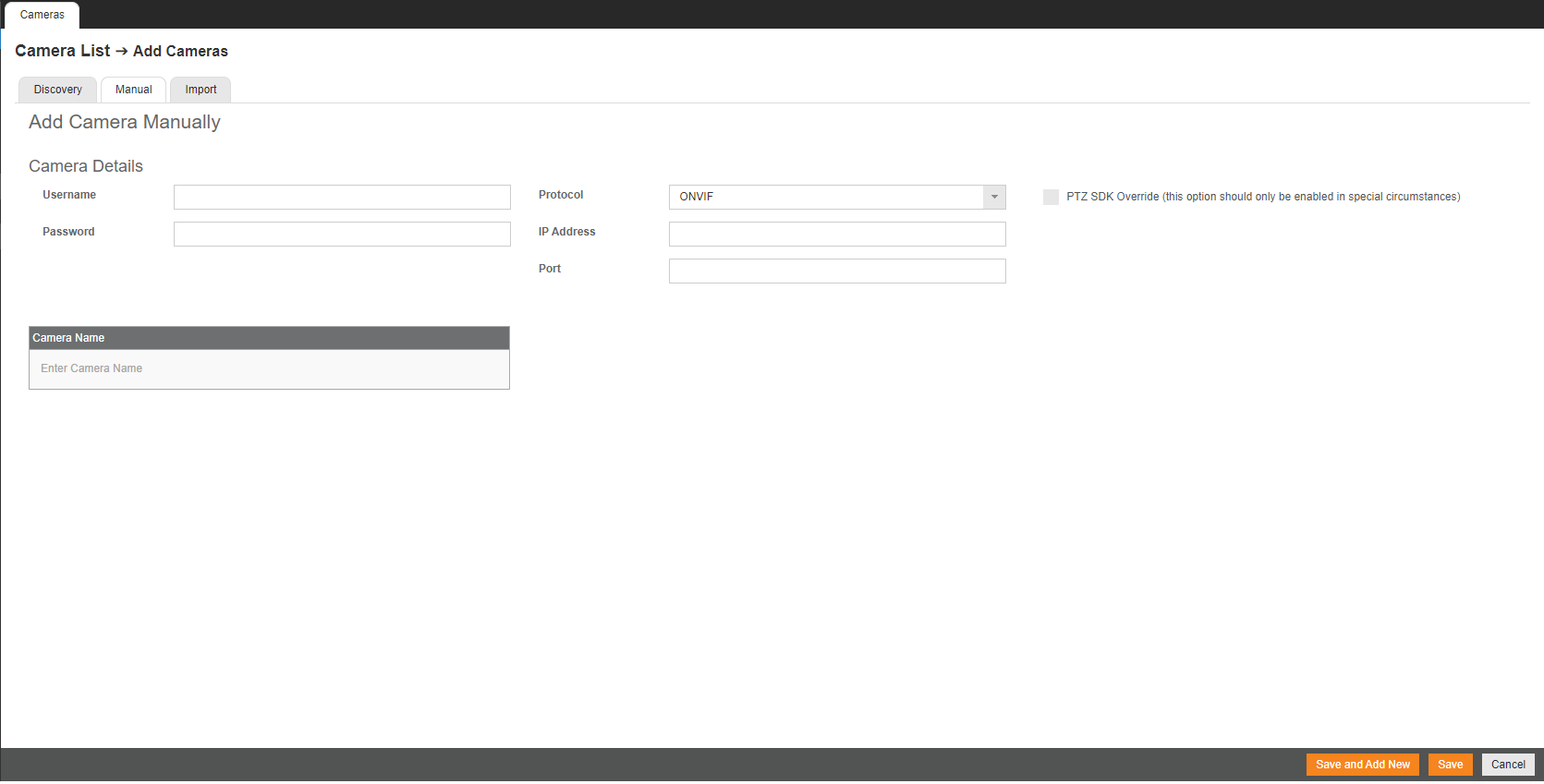
NOTE: For Protocol, select ONVIF or RTSP.
NOTE: When using RTSP, specify the individual URL streams for your cameras. For instructions regarding these streams, consult the cameras's manual.
See Advanced Camera Management for cameras that may not be detected automatically.