
Configuring CHeKT Integration with Virtual Bridge
OpenEye's Virtual Bridge integration connects OpenEye recorders and cloud cameras directly to the CHEKT cloud platform, enabling AI-detected events to automatically trigger alerts — with snapshots and video clips — delivered to central monitoring stations through a unified Remote Video Monitoring portal.
Enabling CHeKT Virtual Bridge Integration on OWS
NOTE: The CHeKT Cloud Integration must be added on the channel partner account to establish a connection with the CHeKT dealer portal.
To link an OpenEye Channel Partner account to a CHeKT Dealership account, follow the steps below:
- Click Management > Integrations.

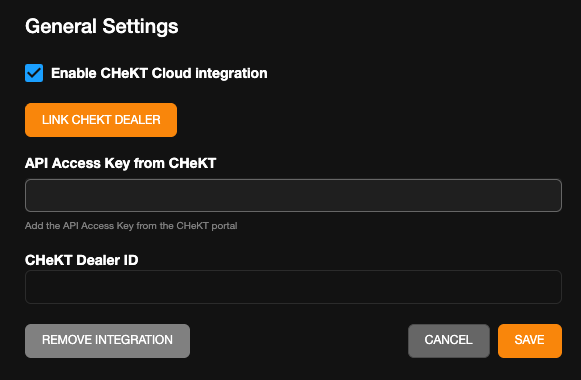
- Click Add New Integration then select CHeKT Cloud and click NEXT.

- Click Link CHeKT Dealer.

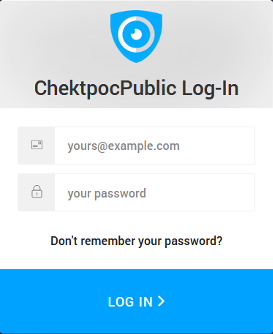
- Log in with your CHeKT Dealer Portal user ID and password.
-
When prompted, authorize the app.

Add a Location to CHeKT
NOTE: Adding CHeKT Cloud to a location can only be done by a channel partner account.
- From an OWS (OpenEye Web Services) end user account, navigate to Management > Location Management > Locations.

-
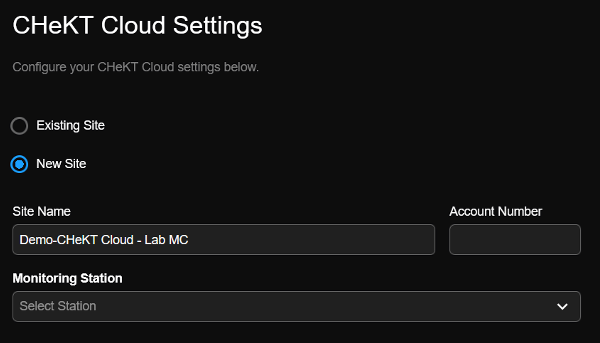
Select CHeKT Cloud,
 then click New Site and SAVE.
-
Select the cameras to sync to CHeKT and click SAVE.

NOTE: After adding a location to CHeKT, an Alert Rule can be added. See Creating an Alert Rule for the CHeKT Integration.
NOTE: After a location has been added to CHeKT, an RVM Enabled eye icon will appear next to the location name.

Enabling CHeKT Virtual Bridge Integration in CHeKT Dealer Portal
- Log in to the CHeKT dealer portal.
- Locate the customer bound in OWS earlier in the process.
- Click on Monitoring Station.

- Select your monitoring station.
- Enter an Account Number and, if desired, an Account Reference ID.

- Click Save.
You are now finished and can create your alert rules.