
Open Door Command
|
|
NOTE: Open Door Command currently works with the Brivo, Genea, and Gallagher Security access control integrations.
Add Devices to a New Integration
An access control integration will have to be created if one doesn't currently show in the Manage Integrations list.
- From the Cloud Portal, select the Management tab.
- Choose Integrations from the drop-down menu.

- Click on Add New Integration.

- Select an Access / Intrusion integration, and select Next.
- From the Manage Integrations list, click Edit.

- Click Readers / Camera Mapping.
- Click Add Camera and select the desired devices for the integration.
NOTE: Open Door Command requires at least one door access device and at least one camera linked to the door access device.
Allow Open Door Command on Device
Once a device has been added to the integration, it can be enabled for the Open Door Command.

- Click to expand the door access device
 to view other associated devices.
 - Check Allow Open Door Command on the device to map it to the open door function.
Enable Open Door Access Permissions
In Management > User Management > User Groups > (Edit Group) > Web Services Permissions > Client Access, check Open Door Access to enable Open Door Command for that User Group.

Open Door from Video Live View
From the live view of the camera associated with the door access device in the integration, use the Activate Relay option to open the door.
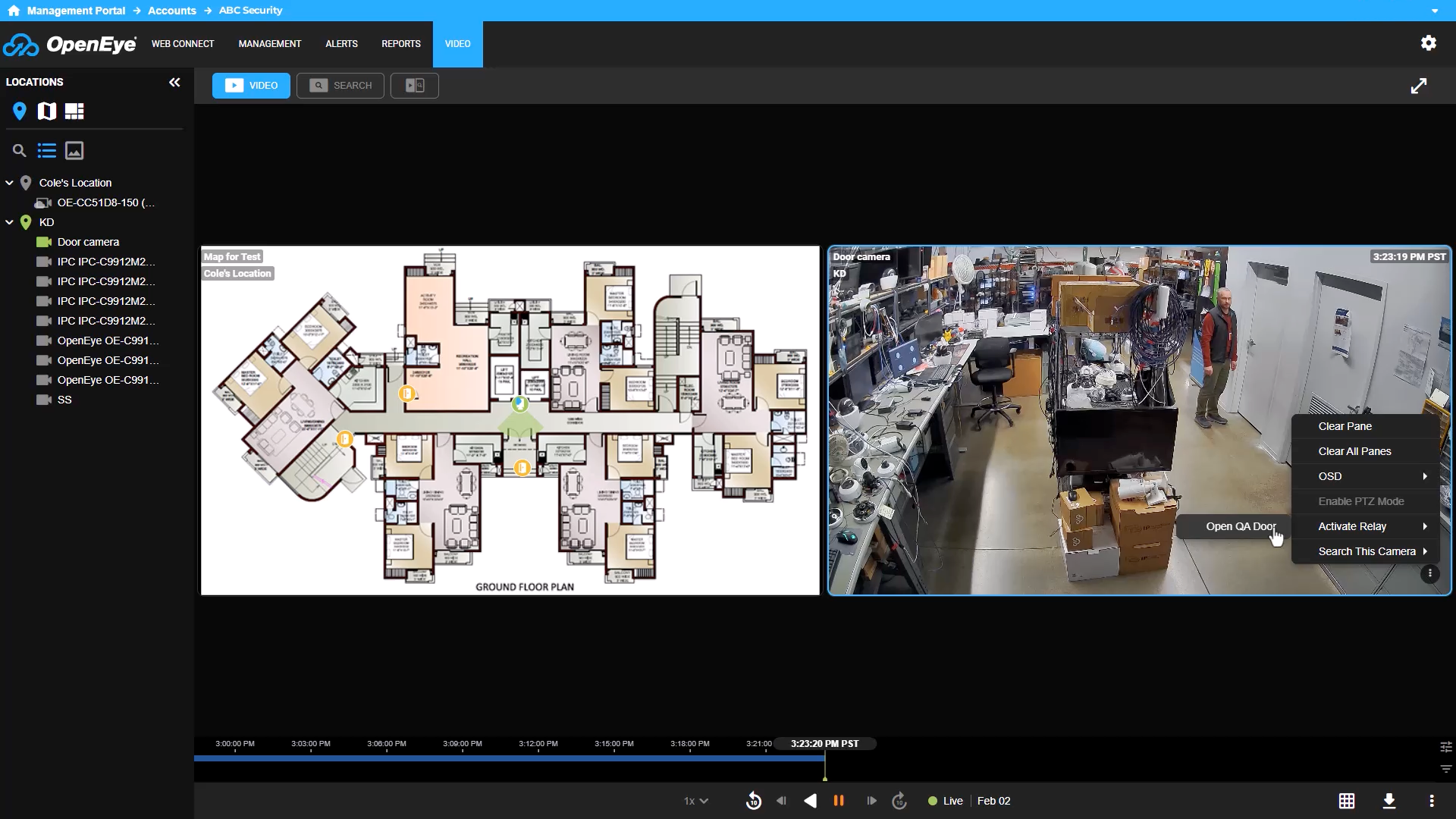
If the door access device has been added to a map, you can also click the door icon to open the door.
