
License Renewal Report
Adding a New License Renewal Report
- From the Channel Partner portal, click Reports in the top navigation bar.
- Click New Report.
- Choose License Renewal Report and click Next.
- Enter a Report Name and Report Description.
- Click Confirm when finished.

Configuring Event Reports

Quick Links
Accounts
The Accounts tab allows Channel Partners to define which customer accounts are included in the License Renewal Report. Accounts can be added individually and removed as needed, allowing partners to scope the report to specific customers.
Adding an Account to the License Renewal Report
- Click Accounts on the left-hand menu.
- Click Add Account.
- Click
 to add an account or Select All.
 - Click Select when finished.

NOTE: Click X in the account list to remove an account from the report.
Report Definition
Report Definition controls the default display settings for the License Renewal Report, determining which license types are included and how results are filtered relative to the configured renewal reminder window.
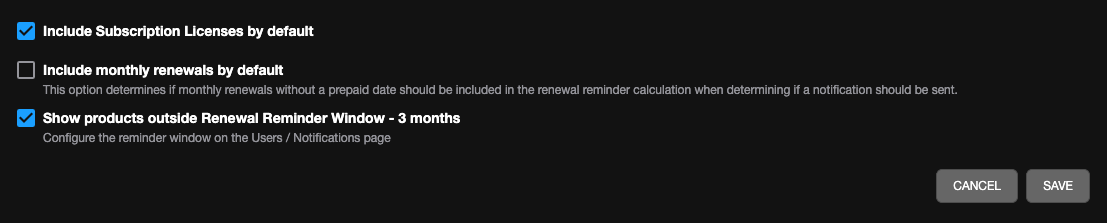
Check to enable definitions for a report:
- Include Subscription Licenses by default - when enabled, subscription licenses are included in the report by default each time the report is run.
- Include monthly renewals by default - when enabled, monthly renewals without a prepaid date are included in the renewal reminder calculation when determining whether a notification should be sent.
- Show products outside Renewal Reminder Window - when enabled, displays licenses that fall outside the configured renewal reminder window. The reminder window duration is set on the Users / Notifications page.
Users / Notifications
Users / Notifications configures automated email alerts for the License Renewal Report. Channel Partners can enable recurring email notifications, define the delivery schedule, set the renewal reminder window, and manage which users or user groups receive the notifications.

-
Enable Email Reminder Notifications (Optional) - when enabled, the selected users will receive a recurring email notification on the configured day and time.
- Time of day to send email - sets the time the notification email is sent.
- How frequently to send - sets the notification frequency to Monthly, Weekly or Daily.
- Day of every Month - specifies the day of the month the notification is sent.
- Next Send Date - displays the next scheduled notification date and time based on current settings.
- Notify only when a renewal falls within the reminder window - when enabled, notifications are only sent if at least one renewal falls within the configured reminder window. Set to 2 months, 3 months, 4 months, 5 months, or 6 months.
-
Add Group and Add User adds user groups and users to the notification recipient list.
-
Send Email (Optional) - controls whether the user or group receives email notifications.
NOTE: Use Search to filter the user/group list by name or email.
NOTE: Click X in the account list to remove an account from the report.
General Info
From the General Info tab, users can edit Report Name and Description or Delete Report.
View Report
Click on View Report  from Quick Links on an Event Report or click View
  on a report from the Reports list.
Viewing the License Renewal Report
Customer Accounts
The Customer Accounts view provides a high-level summary of license renewal status across customer accounts. It displays the earliest upcoming renewal date per account, along with license counts and account tier information. Users can toggle display options, filter results, and navigate directly to account management from this view.
This report displays the earliest license term renewal date. If an account has multiple license renewal dates, only the earliest one will display.
* - Denotes accounts with multiple subscription groups renewing in the renewal reminder window.
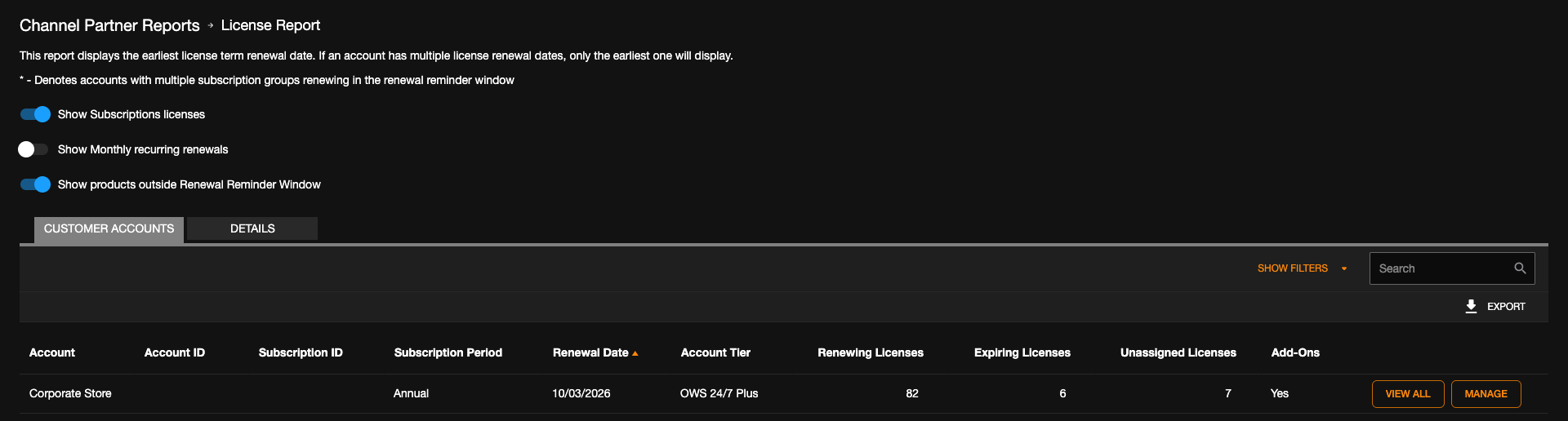
- Show Subscription Licenses - includes subscription licenses in the report results.
- Show Monthly Recurring Renewals - when enabled, includes monthly recurring renewals in the report results.
- Show Products Outside Renewal Reminder Window - when enabled, displays licenses that fall outside the configured renewal reminder window.
Show Filters
Filters provide additional options to narrow report results by account, license status, and subscription details. Some filters are account-dependent and become available only after a specific account is selected.

Details
Details provides a granular, line-item breakdown of licenses for each customer account. Each row represents an individual license group or product, allowing Channel Partners to identify specific products, quantities, renewal dates, and statuses for precise inventory and renewal management.
