
Rebuilding RAID
Rebuilding RAID requires set-up in Areca and set-up in the corresponding operating system. All steps must be followed.
Rebuilding RAID in Areca
Follow the steps below to rebuild RAID in Areca:
- Go to 127.0.0.1:81
- Select the RAID card.
- Log in with admin/0000
- Dropdown RAID Set Functions > Create RAID Set.
- Select all drives and select Confirm The Operation and click Submit.

- Dropdown Volume Set Functions > Create Volume Set and click Submit.
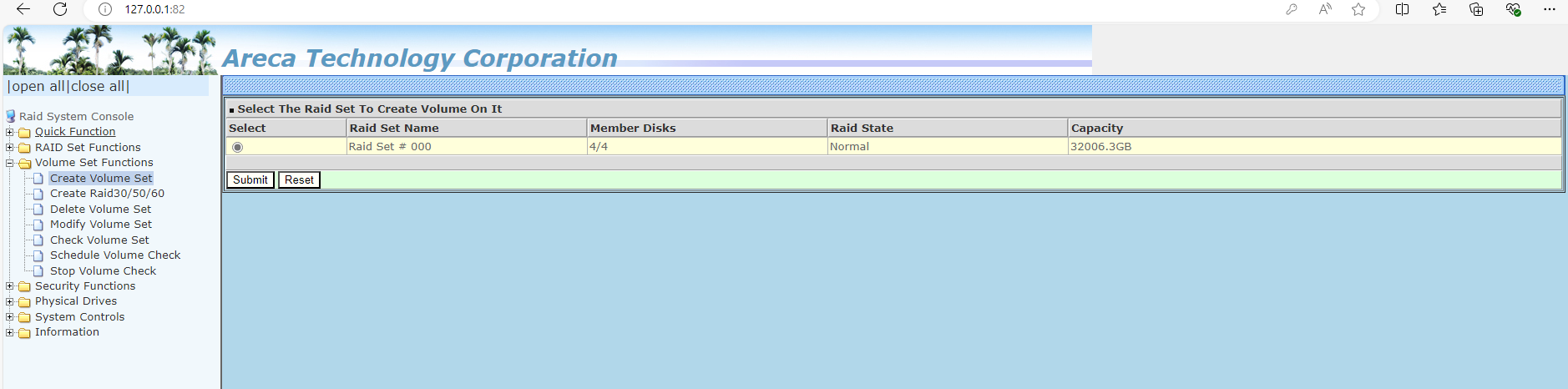
- Under the Volume Attribute settings area set Volume RAID Level to RAID 5 or 6 depending on what your unit needs to have on it and set Volume Initialization Mode to Background Initialization.

- Select Confirm The Operation and click Submit.
- Dropdown Information and select RAID Set Hierarchy the Volume State should be Need Init. Move onto setting up in Windows or Linux depending on the operating system for the recorder.

NOTE: Windows and Linux have a different set-up process. Please follow accordingly.
Windows
- Open Create and format hard disk partitions.
- You will be asked to Initialize Disk. Make sure to select GPT and click OK.

- Find the Unallocated disk.

- Right click and select New Simple Volume.

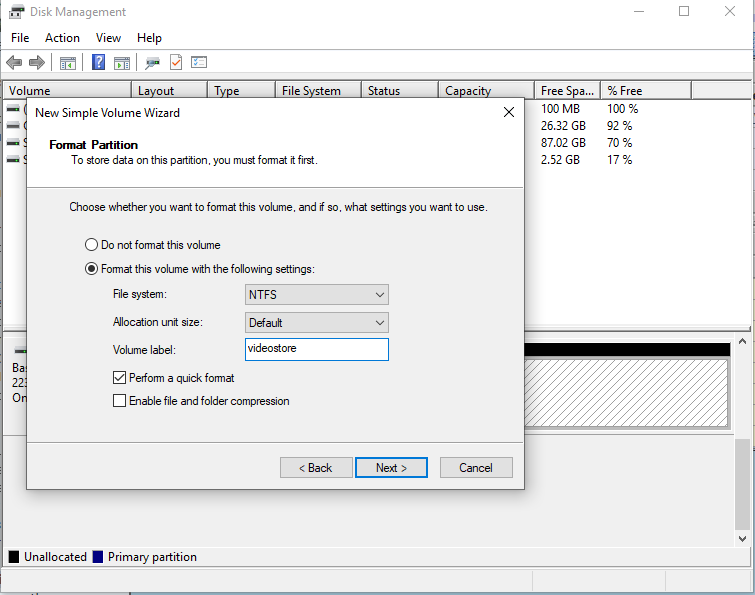
- Click Next until you see an area to label the volume and set this to videostore then click Next.
- Click Finish.
You should now see the drive in Apex.
Linux
After setting up the Areca card, ensure initialization has started and hits 0.1%. After that, follow our instructions to perform a Factory Default via USB: