Adding ButterflyMX Cameras
Best Practices
- Ensure the camera is running the latest approved firmware.
- Set the IP address to either static or DHCP depending on the install.
- Ensure the correct username and passwords are in place.
Note
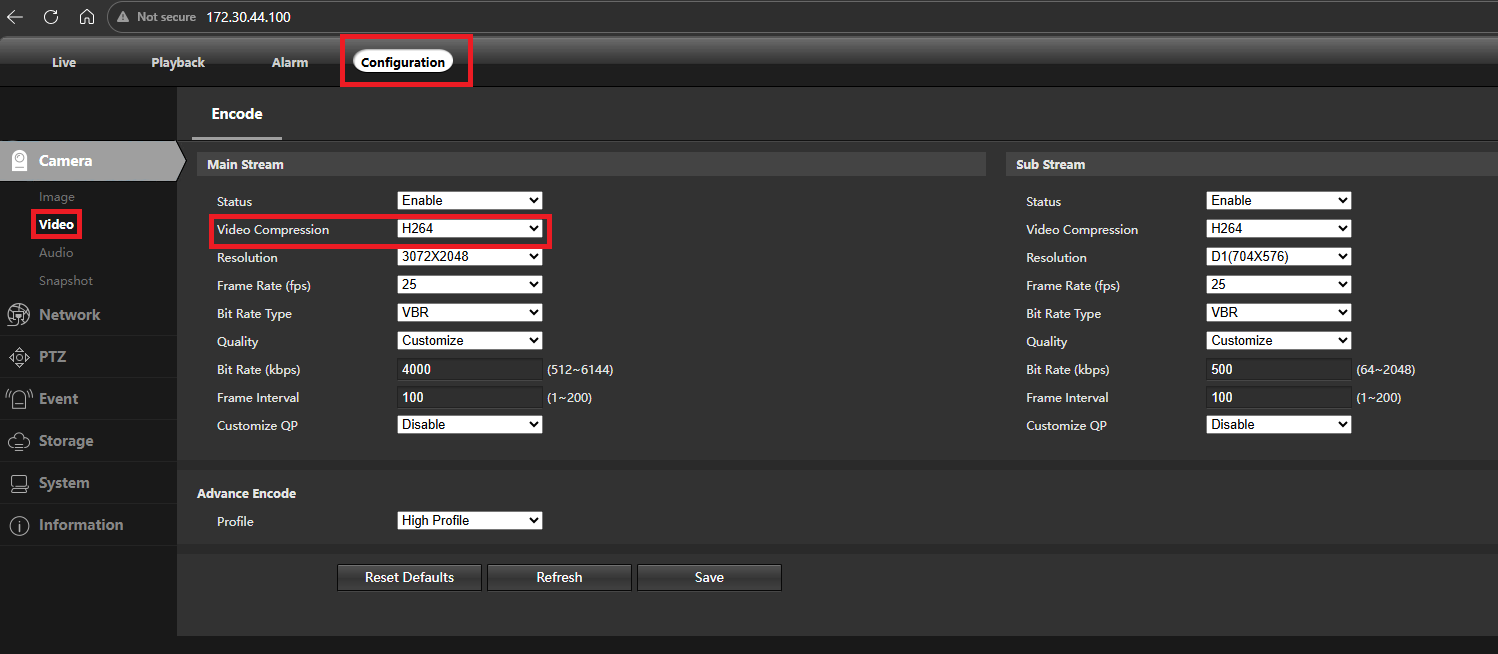
- Video compression must be set to H.264 and NOT H.265
Camera Discovery
ButterflyMX cameras can be discovered and added to Apex using the built-in camera discovery tool.
- Go to your recorder and click the Settings cog

- Navigate to Cameras and click Add Camera
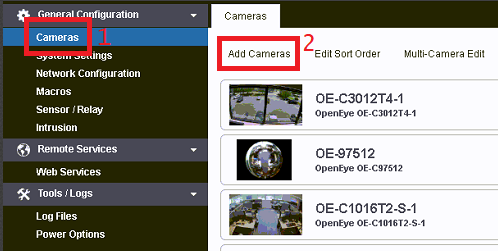
- Click Discover Cameras
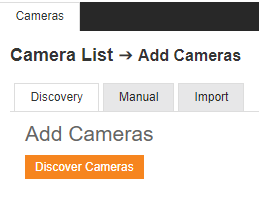
- Find the ButterflyMX camera in the list — it will appear as a generic camera

- Select the camera and add it to your recorder
Configuring the ButterflyMX Camera
After adding the camera, you will need to configure it via the camera's WebUI to ensure proper streaming.
- Note the camera's IP address from the camera listing in Apex
- Open a web browser and navigate to the camera's IP address
- Log in using default credentials
- Navigate to the Configuration tab
- Click on the Video tab
- Ensure video compression is set to H.264 and NOT H.265
- Save your settings