
Vaxtor Technologies License Plate Recognition Integration Instructions
NOTE: Vaxtor Technologies integration is only available with certain licensing tiers. See OWS Licensing for more information.
Vaxtor Technologies License Plate Recognition Integration Instructions
These instructions will provide the specific information needed for sending license plate events to OpenEye Web Services. For instructions on how to install Vaxtor Technologies ALPR on your device, or for assistance with licensing and troubleshooting, please contact your Vaxtor representative.
Creating an API Key
- Select the Management > Integrations tab.
- Click Edit
 on the Event Receiver API (Analytics) Integration created above.
- Select API Access Keys.

- Select Add Key.

- Click Add Key and you will be presented with the Secret Key. Enter a Key Name and click Add.
NOTE: This is the only time you will be able to view the Secret Key. Be sure to copy it somewhere. If the secret key is lost, a new API access token must be created.

- Select the Management > Integrations tab.
- Click Edit on the Event Receiver API (Analytics) Integration created above.
- Select API Access Keys.
- Select Add Key.
- Click Add Key and you will be presented with the Secret Key. Enter a Key Name and click Add.
NOTE: This is the only time you will be able to view the Secret Key. Be sure to copy it somewhere. If the secret key is lost, a new API access token must be created.
- In OWS, select Management > Locations > Locations.
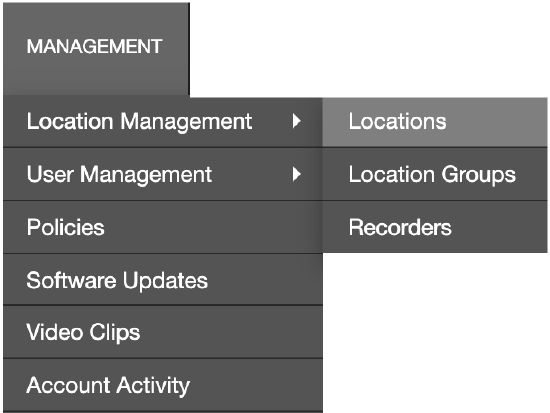
- Select the location from the menu on the left and click Cameras.
- Copy the Camera External ID for the camera you would like associated with the integration.

Configure Reporting
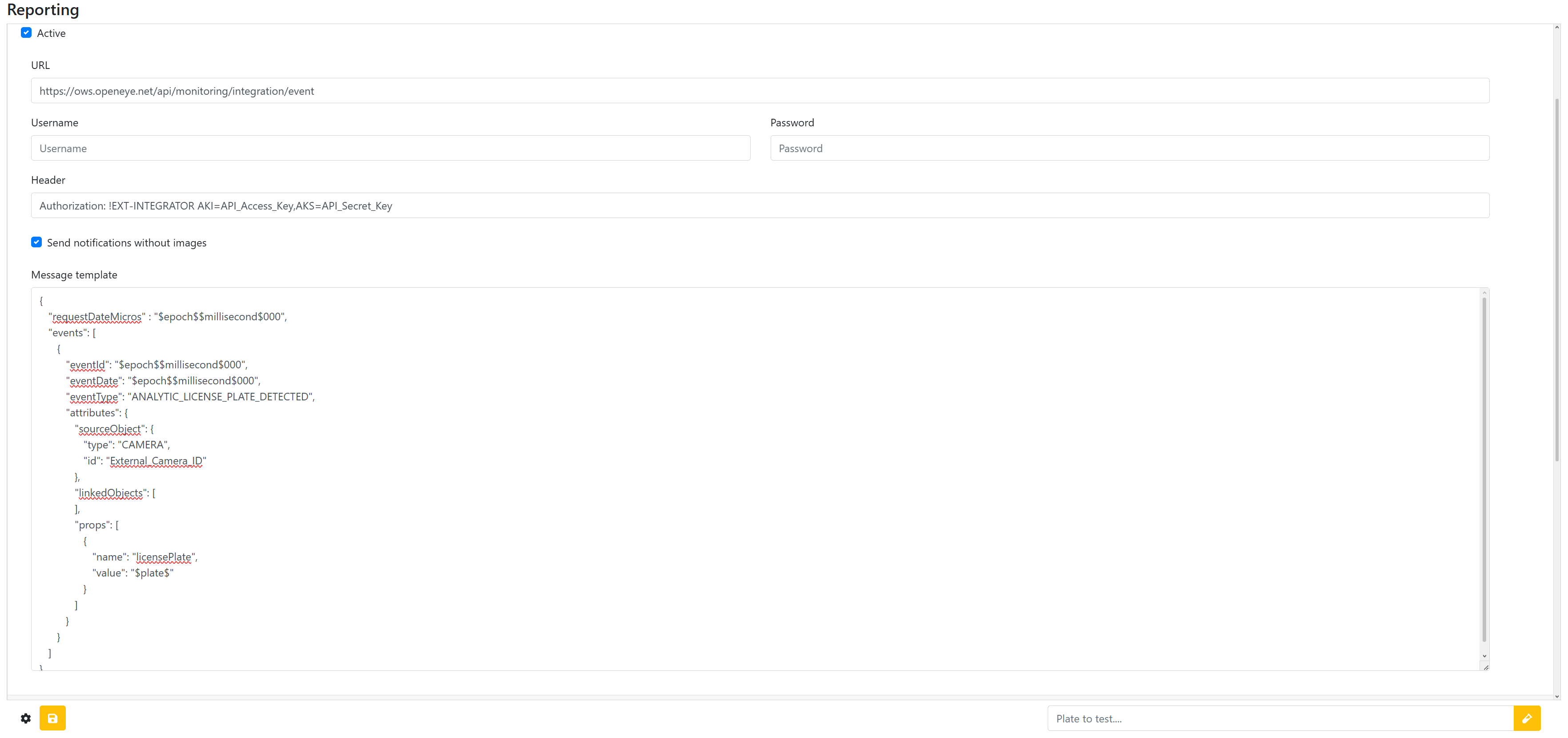
Within the Reporting section of your Vaxtor Technologies solution, choose JSON and then configure the following options:
-
URL: https://ows.openeye.net/api/monitoring/integration/event
-
Username and password leave blank
-
Header: Authorization: !EXT-INTEGRATOR AKI={API_Access_Key},AKS={API_Secret_Key} where {API_Access_Key} and {API_Secret_Key} are the API Key and API Secret keys created in the Creating an API Key section.
-
Example: Authorization: !EXT-INTEGRATOR AKI=4B6Z7QLL74TL,AKS=5k_bCdt84XIRfbt72uMNuSs13rGIV
-
-
Message Template: Paste this into the Message Template section, and replace the External_Camera_ID with the ID found in the Finding the External Camera ID section above.
{

       "requestDateMicros" : "$epoch$$millisecond$000",

       "events": [

          {

             "eventId": "$epoch$$millisecond$000",

             "eventDate": "$epoch$$millisecond$000",

             "eventType": "ANALYTIC_LICENSE_PLATE_DETECTED",

             "attributes": {

                "sourceObject": {

                   "type": "CAMERA",

                   "id": "External_Camera_ID"

                },

                "linkedObjects": [

                ],

                "props": [

                   {

                      "name": "licensePlate",

                      "value": "$plate$"

                   }

                ]

             }

          }

       ]

    }
Create a License Plate Alert Rule
- Under Rules, select Alert Rules from the dropdown menu.

- Click New Alert Rule.

- Select an Alert Type from the pop-up menu.

- Click Next.

- Name the alert and give it a Description as desired.
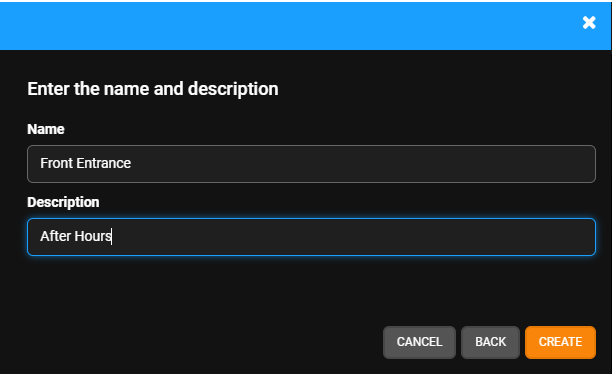
- Click Create.

Configure an LPR Rule in Rule Definition.

- Select to either Enable matches for characters that look the same. Select Disable for exact character matches.
- Select to Match the plate characters entered in the License Plate List in the field below. Select No Match to send an alert when a plate doesn't match the plate characters entered in the field below.
- Enter license plate characters into the License Plate List
NOTE: Enter a wildcard asterisk * to a License Number to return specific results:
Examples:
WH89K* will return all license plates that start with WH89K
WH*KR will return all license plates that start with WH and end with KR
W*MK* will return all license plates that start with W and contain MK
- Enter the Start and End times the rule will be active.
- Check the boxes beneath the Days of the Week on which the rule should be active.
- Active Alert (Optional) - Check the Active Alert box to add the alert to the Active Alert Dashboard and tag it as an Active Alert in email notifications.
- Activate Relay on originating device (Optional) - Enter the relay numbers separated by commas that activate with the alert.
Test a Plate
After configuring the above options, click Save and then enter a plate number that will trigger the alert rule configured in the Create a License Plate Alert Rule section above to test sending to OpenEye Web Services in the Plate to test box and click Send.